Munfarid
- Item Name : Munfarid – A WordPress Theme For Blog & Shop
- Item Version : v 2.0
- Author : Energetic Themes
- Online Online Documentation : http://updates.energeticthemes.com/docs/munfarid/index.html
First of all, Thank you so much for purchasing this Theme and for
being my loyal customer. You are awesome!
You are entitled to get free lifetime updates to this product +
exceptional support from the author directly.
This documentation is to help you regarding each step of customization. Please go through the documentation carefully to understand how this Theme is made and how to edit this properly. Basic HTML and CSS knowledge is required to customize this Theme. You may learn basics here, here and here.
Requirements
You will need the following sofwares to customize this Theme.
- You should have a domain name (Ex: http://yourwebsite.com) and a good webhosting company (Ex: WP Engine, Media Temple, Hostgator, Bluehost)
- You should have running WordPress site
- Code Editing Software (eg: Dreamweaver, Sublime Text or Notepad)
- Web Browser for testing (eg: Google Chrome or Mozilla Firefox)
- FTP Tool to upload files to Server (eg: FileZilla)
- A web browser of your choice (Ex: Chrome, Firefox)
Be careful while editing the Theme. If not edited properly, the design layout may break completely. No support is provided for faulty customization.
Getting StartedBack to Top
This document covers the installation, set up, and use of this theme, and provides answers and solutions to common problems. We encourage you to first read this document thoroughly if you are experiencing any difficulties before contacting our support team.
WordPress Upload
- Download the theme zip file from your Envato account from ThemeForest.
- Log in to your WordPress Dashboard (Ex: http://yourwebsite.com/wp-admin).
- Navigate to Appearance > Themes.
- Click on Add New and then Click on Upload Theme .
- Choose the downloaded munfarid.zip and press the Install Now button.
- In the next screen, click on the Activate link.
- Done.
The theme files will be stored on your server in the
wp-content/themes/ location.
When uploading your theme with the installer, please ensure you are uploading the theme .zip file, not the entire package you downloaded. In this case, you will be uploading munfarid.zip.
FTP Upload
To manually upload your new WordPress theme, login with your credentials to your website and locate the wp-content folder in your WordPress install files. Upload the un-zipped 'munfarid' folder into the: wp-content/themes folder.
Once uploaded, activate the theme by heading to the “Themes” menu in the WordPress Dashboard. Locate the Munfarid theme and hit “Activate”.
Install Recommended Plugins
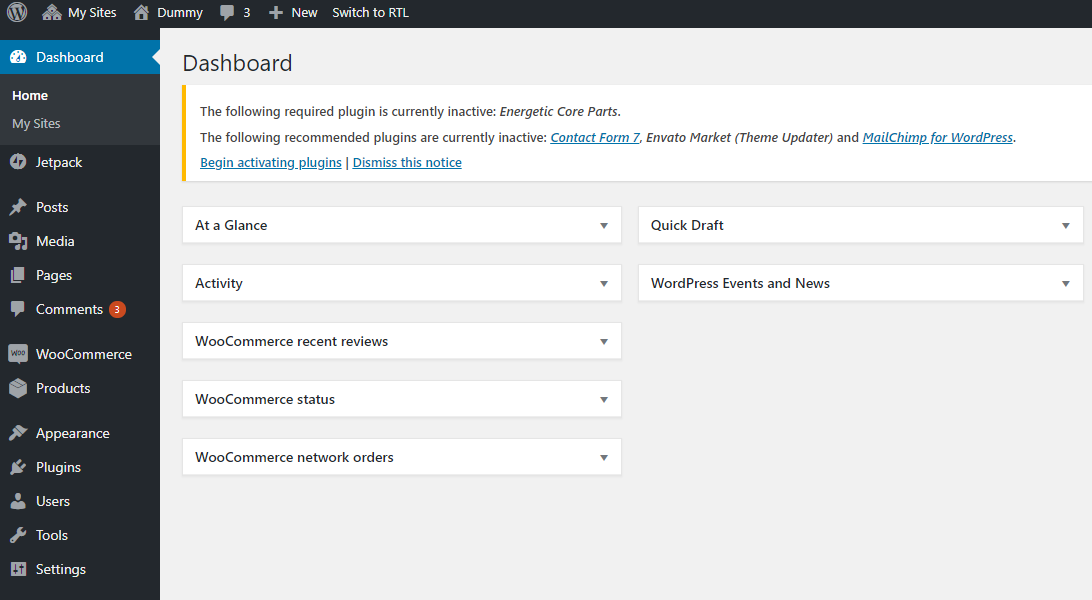
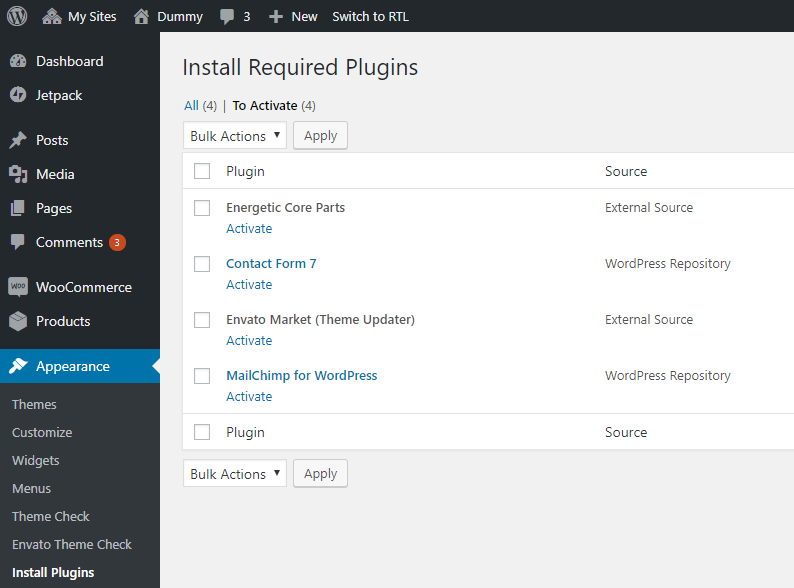
When you first activate the theme, you will be notified of what plugins are recommended to use with Munfarid. You don't have to install each one, if you're not planning on using a particular feature. Once clicked, you will be taken to the Plugin Installation admin view, where you may install and activate each plugin, as depicted in the second screenshot below.
Need Help?
If you have a problem with the theme or found a bug, please get in touch. We take pride in our customer support and we will do what we can to assist you. If you are experiencing a theme issue, please first turn off all third party plugins to see if the problem persists.
Importing The Demo Content using XMLBack to Top
We have include the exported XML file from our demo, this allows you to quickly set up your theme the same way our demo is set up. Or you cand download Munfarid XML here.
Install and activate these plugins before you proceed: Energetic Core Parts, WooCommerce, MailChimp for WordPress, contact form 7, The XML file is included within the download package with the folder name Demo-Content-XML-file.
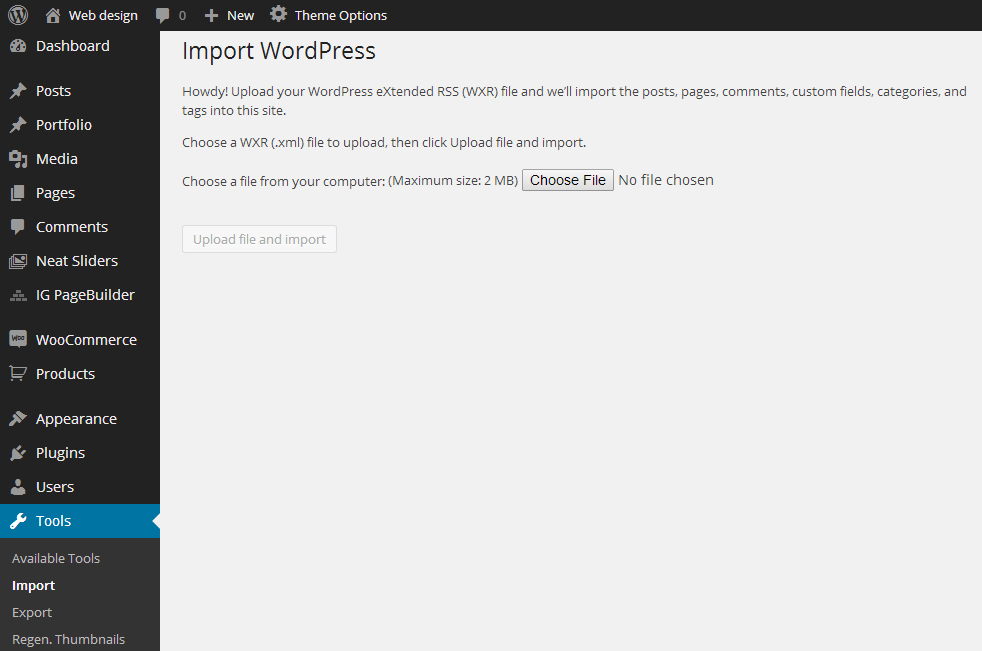
Step 1 - Navigate to WP Admin -> Tools -> Import.
Step 2 - Select and install WordPress importer.
Step 3 - Select the XML file and upload it. It will in few minutes install and upload all content with images.
Step 4 - Now navigate to WP Admin -> Appearance -> Menus page and select the newly created menu and assign it to "Main Navigation" location.
Step 5 - Next, navigate to WP Admin -> Settings -> Reading Settings and set a front page and a posts page.
SiteEditorBack to Top
Theme LicenseBack to Top
Please remember you have purchased a very affordable theme and you have not paid for a full-time web design agency. Occasionally we will help with small tweaks, but these requests will be put on a lower priority due to their nature. Support is also 100% optional and we provide it for your connivence, so please be patient, polite and respectful.
Please visit our Profile page or ask question @energeticthemes
Support for my items includes:
- * Responding to questions or problems regarding the item and its features
- * Fixing bugs and reported issues
- * Providing updates to ensure compatibility with new software versions
Item support does not include:
- * Customization and installation services
- * Support for third party software and plug-ins
Before seeking support, please...
- * Make sure your question is a valid Theme Issue and not a customization request.
- * Make sure you have read through the documentation and any related video guides before asking support on how to accomplish a task.
- * Make sure to double check the theme FAQs.
- * Try disabling any active plugins to make sure there isn't a conflict with a plugin. And if there is this way you can let us know.
- * If you have customized your theme and now have an issue, back-track to make sure you didn't make a mistake. If you have made changes and can't find the issue, please provide us with your changelog.
- * Almost 80% of the time we find that the solution to people's issues can be solved with a simple "Google Search". You might want to try that before seeking support. You might be able to fix the issue yourself much quicker than we can respond to your request.
- * Make sure to state the name of the theme you are having issues with when requesting support via ThemeForest.
Once again, thank you so much for purchasing this theme. As I said at the beginning, I'd be glad to help you if you have any questions relating to this theme. No guarantees, but I'll do my best to assist. If you have a more general question relating to the themes on ThemeForest, you might consider visiting the forums and asking your question in the "Item Discussion" section.